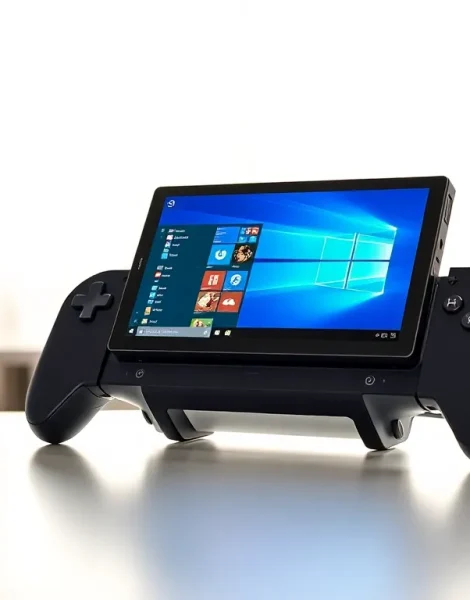
The Lenovo Legion Go offers a powerful handheld gaming experience, but new users often need guidance on setup and features. This portable device runs full Windows 11, which separates it from competitors like the Steam Deck. Learning how to Lenovo Legion Go properly means understanding its unique controller system, display options, and software tools.
This guide covers everything from initial setup to performance optimization. Whether someone just unboxed their Legion Go or wants to get more from their device, these steps will help. The following sections explain each feature in plain terms with practical advice anyone can follow.
Table of Contents
ToggleKey Takeaways
- The Lenovo Legion Go runs full Windows 11, giving you access to all PC games and software, unlike competitors with custom operating systems.
- Use Legion Space by pressing the Legion button for a console-like interface that makes navigating games and settings easier with a controller.
- Extend battery life by lowering the display to 60Hz and 1280×800 resolution—the upscaling looks great on the 8.8-inch screen.
- Expand the 512GB or 1TB storage with a microSD card (up to 2TB) since PC games fill space quickly.
- Enable AMD Radeon Super Resolution (RSR) to boost frame rates while maintaining sharp visuals at lower render resolutions.
- Keep Lenovo Vantage and AMD drivers updated regularly for the best game compatibility and performance on your Legion Go.
Getting Started with Your Legion Go
The first boot of the Lenovo Legion Go takes about 10-15 minutes. Users will see the standard Windows 11 setup process. They should connect to Wi-Fi, sign into a Microsoft account, and set their time zone.
After Windows loads, the Legion Go needs a few updates. Windows Update handles the operating system patches. Lenovo Vantage, which comes pre-installed, manages driver updates for the hardware. Running both ensures the device performs at its best.
The Legion Go controllers detach from the main unit. New owners should practice removing and reattaching them. A small release button sits on the back of each controller rail. Press it while sliding the controller upward. The controllers can work wirelessly via Bluetooth or attached to the included controller grip for a traditional gamepad experience.
Battery life matters for portable gaming. The Legion Go includes an 80.5Wh battery and a 65W charger. A full charge takes roughly 2 hours. Users can expect 2-3 hours of gaming at high settings or up to 8 hours for lighter tasks.
One key step many people skip: calibrating the touchscreen. Go to Settings > Bluetooth & devices > Touch and run the calibration tool. This improves accuracy when using the screen for menus or touch-based games.
Navigating Windows and Legion Space
The Lenovo Legion Go runs Windows 11, not a custom operating system. This means users have access to the full Windows desktop. They can install any PC software, browse the web, and use productivity apps.
But, Windows wasn’t designed for handheld gaming. That’s where Legion Space comes in. Legion Space is Lenovo’s custom launcher that creates a console-like interface. It displays installed games, system stats, and quick settings in a controller-friendly layout.
To open Legion Space, press the Legion button on the right controller. The interface shows:
- Game Library: All detected games from Steam, Xbox, Epic, and other launchers
- Quick Settings: Power profiles, display brightness, and audio controls
- Performance Stats: CPU temperature, GPU usage, and battery level
Users can switch between Legion Space and the Windows desktop anytime. Press the Legion button again or tap the minimize icon. This flexibility lets people use the Legion Go as a handheld console or a full Windows tablet.
The on-screen keyboard appears when tapping text fields. It works well for short inputs like passwords. For longer typing sessions, connecting a Bluetooth keyboard makes more sense. The Legion Go supports any standard Bluetooth or USB peripheral.
Optimizing Controller and Display Settings
The Lenovo Legion Go controllers include several features worth configuring. Each controller has Hall Effect joysticks, which resist drift over time. They also include back buttons, a trackpad on the right controller, and gyroscope sensors.
To customize controls, open Legion Space and select Controller Settings. Users can:
- Remap any button to a different function
- Adjust joystick dead zones and sensitivity
- Enable or disable gyro aiming
- Set trackpad behavior (mouse, scrolling, or disabled)
The right controller doubles as a mouse when detached. Lenovo calls this FPS Mode. It’s useful for games that benefit from mouse aiming. Hold the right controller vertically and use the trackpad for movement.
Display settings affect both visuals and battery life. The Legion Go features an 8.8-inch IPS screen with 2560×1600 resolution. It supports 144Hz refresh rate and 500 nits brightness.
For gaming, these display options exist:
| Setting | Best For | Battery Impact |
|---|---|---|
| 144Hz + Native Resolution | Visual quality | High drain |
| 60Hz + 1280×800 | Battery life | Low drain |
| 144Hz + 1280×800 | Balance | Medium drain |
Many games run smoother at 1280×800 resolution. The Legion Go upscales well, and most users won’t notice much difference on the smaller screen. Lowering resolution also extends battery life significantly.
Installing and Playing Games
The Lenovo Legion Go plays PC games from any source. Steam, Xbox Game Pass, Epic Games Store, GOG, and other platforms all work. Users install launchers like they would on any Windows PC.
Steam is the most popular choice. Download it from store.steampowered.com and sign in. Steam’s Big Picture mode provides a controller-friendly interface. Legion Space can detect and launch Steam games directly.
Xbox Game Pass offers excellent value for Legion Go owners. The subscription includes hundreds of games that download and play locally. Many Game Pass titles have controller support and work well on handhelds.
To install a game:
- Open the desired game launcher (Steam, Xbox, etc.)
- Find the game in the store or library
- Click Install and choose the installation location
- Wait for the download to complete
- Launch from the launcher or Legion Space
The Legion Go has 512GB or 1TB of storage depending on the model. Games fill this space quickly. Adding a microSD card expands storage affordably. The device supports cards up to 2TB. Install games directly to the SD card through each launcher’s settings.
Emulation is another option. The Legion Go can run emulators for older consoles. Programs like RetroArch, Dolphin, and RPCS3 work well. Users must supply their own game files legally obtained from games they own.
Essential Tips for Better Performance
Getting the best experience from the Lenovo Legion Go requires some tweaks. These tips address common issues and boost performance.
Use the Right Power Profile
Legion Space offers three power profiles: Quiet, Balanced, and Performance. Quiet mode limits TDP to 8W for maximum battery life. Performance mode allows up to 25W TDP for demanding games. Match the profile to the game’s requirements.
Enable AMD RSR
AMD Radeon Super Resolution upscales lower resolutions with minimal quality loss. Enable it in AMD Software > Gaming > Graphics. Run games at 1280×800 and let RSR upscale to native resolution. This improves frame rates while keeping visuals sharp.
Manage Background Apps
Windows runs many background processes that consume resources. Close unnecessary apps before gaming. Task Manager shows what’s running. Disable startup programs that aren’t needed through Settings > Apps > Startup.
Keep Drivers Updated
Lenovo releases frequent driver updates for the Legion Go. Check Lenovo Vantage weekly for new versions. AMD also updates graphics drivers monthly. These updates often improve game compatibility and performance.
Monitor Thermals
The Legion Go can get warm during intense gaming. Legion Space displays temperatures in real-time. If the device throttles due to heat, take a break or lower graphics settings. Avoid blocking the vents on the back of the unit.
Adjust Per-Game Settings
Not every game needs the same configuration. Create custom profiles in Legion Space for demanding titles. Lower settings for older games to save battery. The Legion Go handles this flexibility well.