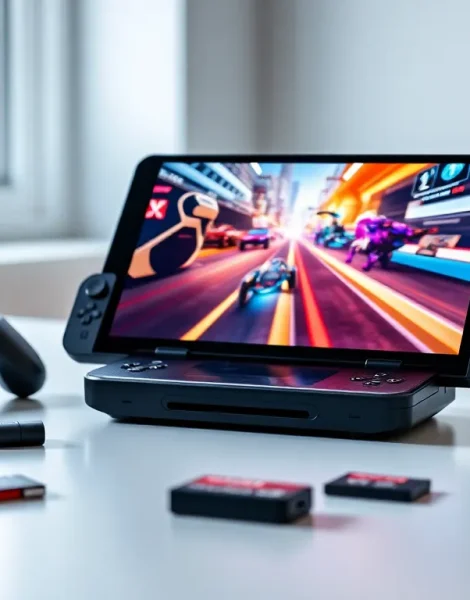
The Lenovo Legion Go packs serious power into a portable form factor. But out of the box, most users don’t tap into its full potential. These Lenovo Legion Go tips will help players squeeze more performance, better battery life, and smoother gameplay from their device.
Whether someone just unboxed their Legion Go or has owned it for months, there’s always room to optimize. From display tweaks to controller tricks, this guide covers the practical adjustments that make a real difference. Let’s jump into what actually works.
Table of Contents
ToggleKey Takeaways
- Adjust refresh rate and TDP settings based on game type to balance performance and battery life on the Lenovo Legion Go.
- Enable AMD FSR and Variable Refresh Rate (VRR) to boost frame rates and eliminate screen tearing in demanding games.
- Master FPS Mode and gyroscope controls on the detachable controllers for mouse-level aiming precision in shooters.
- Extend battery life by lowering brightness, capping frame rates at 40 FPS, and using Quiet Mode for less demanding titles.
- Create multiple performance profiles in Legion Space to quickly switch between plugged-in, portable, and battery-saver modes.
- Invest in essential accessories like a carrying case, USB-C dock, and high-speed microSD card to maximize your Lenovo Legion Go experience.
Optimize Display and Performance Settings
The Legion Go features an 8.8-inch QHD+ display with a 144Hz refresh rate. That’s impressive hardware, but default settings don’t always maximize it.
Adjust the refresh rate based on the game. Not every title needs 144Hz. For slower-paced games like RPGs or strategy titles, dropping to 60Hz saves battery without sacrificing visual quality. Action games and shooters benefit from higher refresh rates, so keep 144Hz for those.
Use AMD’s FSR (FidelityFX Super Resolution). This upscaling technology boosts frame rates while maintaining decent image quality. Players can enable FSR through game settings or AMD’s Adrenalin software. It’s one of the most effective Lenovo Legion Go tips for improving performance in demanding titles.
Set custom TDP limits. The Legion Go allows users to adjust thermal design power through Legion Space. Lowering TDP reduces heat and extends battery life during lighter games. Raising it provides more headroom for AAA titles. Most users find 15-20W works well for portable play, while 25W+ suits docked gaming.
Enable Variable Refresh Rate (VRR). This feature syncs the display’s refresh rate with the GPU’s output, reducing screen tearing. It makes gameplay smoother, especially when frame rates fluctuate.
Master the Detachable Controllers
The detachable controllers set the Legion Go apart from competitors. Learning to use them properly unlocks new ways to play.
Practice with FPS Mode. The right controller transforms into a vertical mouse-like grip. This FPS Mode gives players better precision in shooters compared to traditional thumbsticks. It takes time to adjust, but many users report improved accuracy after a few sessions.
Remap buttons through Legion Space. Every button on the controllers can be reassigned. Players can create game-specific profiles, assigning common actions to more accessible buttons. The back paddles are especially useful for actions that normally require moving thumbs off the sticks.
Calibrate the trackpad. The right controller includes a trackpad that works as a mouse. Adjusting sensitivity in Windows settings makes desktop navigation much easier. Some users set higher sensitivity for quick cursor movement and lower it for precision tasks.
Don’t forget the gyroscope. Motion controls add another layer of aiming precision. Games with native gyro support work best, but third-party tools can add gyro aiming to almost any title. Combined with FPS Mode, this gives the Legion Go mouse-level accuracy without external peripherals.
These Lenovo Legion Go tips for controller use take practice. Spend time in less competitive games to build muscle memory before jumping into ranked matches.
Extend Battery Life While Gaming
Battery life remains the biggest challenge for handheld gaming PCs. The Legion Go’s 49.2Wh battery delivers 1-3 hours depending on workload. Smart settings extend playtime significantly.
Lower screen brightness. The display consumes substantial power. Dropping brightness from 100% to 50% can add 30-45 minutes of playtime. Many games look fine at reduced brightness, especially in dimmer environments.
Cap frame rates at 30 or 40 FPS. This sounds painful to enthusiasts, but a stable 40 FPS actually feels smooth on the Legion Go’s high-quality panel. Games optimized for 40 FPS provide a good balance between visual fluidity and battery consumption.
Close background applications. Windows runs many services that drain power. Before gaming sessions, close browsers, streaming apps, and unnecessary startup programs. Task Manager reveals which processes consume the most resources.
Use Quiet Mode in Legion Space. This profile limits performance but dramatically reduces power draw. It works well for indie games, visual novels, and older titles that don’t need full GPU power.
Carry a portable charger. A 65W USB-C power bank extends gaming sessions away from outlets. Look for power banks with PD (Power Delivery) support. This practical Lenovo Legion Go tip solves battery anxiety for long trips.
These adjustments won’t transform the device into an all-day machine, but they stretch playtime enough for most commutes and flights.
Customize Legion Space and Windows Settings
Legion Space serves as the command center for the device. Windows 11 adds another layer of customization. Both deserve attention.
Create multiple performance profiles in Legion Space. Set up profiles for different scenarios: one for maximum performance when plugged in, another for balanced portable play, and a third for battery-saver mode. Switching between them takes seconds.
Disable unnecessary Windows services. Services like Windows Search indexing and Superfetch consume resources in the background. Disabling them frees up CPU cycles and RAM for games. Be selective though, some services affect system stability.
Install game launchers strategically. Steam, Epic, GOG, and other platforms compete for storage space. Install only the launchers needed for owned games. Each one consumes RAM when running.
Optimize Windows for gaming. Enable Game Mode in Windows Settings. Turn off notifications during fullscreen applications. These small changes prevent interruptions and reduce background overhead.
Keep drivers updated. AMD releases driver updates that improve game compatibility and performance. Check for updates monthly through AMD’s website or the Adrenalin software. New Lenovo Legion Go tips often emerge from driver changelog notes.
Consider a fresh Windows install. Some users report better performance after removing bloatware through a clean installation. This takes time but eliminates software conflicts and frees storage space.
Essential Accessories and Add-Ons
The right accessories enhance the Legion Go experience. Some are essential: others add convenience.
A quality carrying case protects the investment. The Legion Go’s detachable controllers need protection during transport. Hard-shell cases with controller compartments prevent damage and scratches.
A USB-C dock expands connectivity. Docking transforms the Legion Go into a desktop replacement. Look for docks with HDMI output, USB-A ports, and ethernet. Playing on a larger monitor with a keyboard and mouse changes how games feel.
MicroSD cards add storage. The internal SSD fills quickly with modern games. High-speed microSD cards (A2-rated) store game libraries without significant load time penalties. Many users keep indie games and emulators on external storage.
Screen protectors prevent damage. The QHD+ display scratches if handled carelessly. Tempered glass protectors add durability without affecting touch responsiveness or image quality.
A quality pair of earbuds improves audio. The built-in speakers work fine, but earbuds deliver better sound isolation and audio detail. Wireless earbuds with low latency modes work best for gaming.
These Lenovo Legion Go tips for accessories aren’t mandatory purchases. Start with protection (case and screen protector), then add other items based on how and where the device gets used most.